
Showing posts with label Ubuntu. Show all posts
Showing posts with label Ubuntu. Show all posts
 Just last week, the Document
Foundation rolled out LibreOffice 4.0. The updated version of the free open
source productivity suite promises a wide range of improvements, ranging from
enhanced compatibility with Office documents and document management systems to
small upgrades in Writer and Calc. Beyond these, however, LibreOffice 4.0's
significant improvements can be felt upon its thorough use and here are some
good reasons why it is worth the shot.
Just last week, the Document
Foundation rolled out LibreOffice 4.0. The updated version of the free open
source productivity suite promises a wide range of improvements, ranging from
enhanced compatibility with Office documents and document management systems to
small upgrades in Writer and Calc. Beyond these, however, LibreOffice 4.0's
significant improvements can be felt upon its thorough use and here are some
good reasons why it is worth the shot.Enhanced inoperability
The
engineers at Document Foundation put a whole lot of work in improving the
inoperability of LibreOffice 4.0. It now better supports Microsoft documents
formats, allowing the import of ink annotations from Word, inclusion of
comments to text ranges, and Microsoft Publisher layouts can now be opened in
Draw.
The
upgraded version now also supports checking documents from almost all document
libraries as long as they support CMIS open standard. These include IBM FileNet
P8, Visio, Microsoft Sharepoint 2010, Alfresco, Nuxeo, SAP NetWeaver Cloud
Service and OpentText.
Remote accessibility of presentations
Perhaps
one of the most promising features that LibreOffice 4.0 has is the Remote
Control App, which allows users to control their presentations from their
Android phones or notebooks over Bluetooth. Here, users can view slide
thumbnails, read speaker notes, and move to the next slide using the volume
control of their phones. According to Michael Meeks, developer of LibreOffice
and distinguished SUSE engineer, this simple addition is something that users
can utilize to carry out product or service demos at customer sites with great
ease.
Although
the feature is currently available for Linux users, Document Foundation assured
that in the next upgrade (which they promise will be released soon), the Remote
Control App can be supported on MacOS X and Windows.
Better-looking user interface
The interface
still has the usual menus, toolbars and icons. However, what makes the UI more
interesting is that it now supports Firefox themes, which means you can choose
from multiple icon sets or pick one from the thousands of personas available to
spiff up the interface. In addition, the Linux version integrates with the
Unity interface for GNOME. Other notable upgrades in the UI include Template
Manager dialog and the ability to preview fonts.
Faster reaction time
LibreOffice
4.0 is faster than its 3.5 version. There is a significant improvement in the
way it loads and saves different kinds of documents, but this is more
noticeable for larger .xls spreadsheets, .ods and .rtf files.
It is free
Of
course, the biggest draw about LibreOffice 4.0 (or LibreOffice in general) is
that you can get it for free. And since it is an open source solution, you have
the power to customize it according to your needs.
Although
LibreOffice 4.0 may not be as powerful as the other ones available as it has
areas that still needs tweaking, it cannot be denied that for a two-year old
office suite, it shows a lot of promise, especially now there is an influx of
developers who are working on providing neat improvements for the program.
Simply put, if you are looking for a free alternative to the usual expensive
office suites available, LibreOffice 4.0 is a smart choice.
As we know that Ubuntu (Linux) Operating System is multiuser, multi tasking operating system. It is really stable, secure and unique. Ubuntu has lots of facility and lots of unique things as in this tutorial I am gonna to show you something special. In this tutorial, I am goanna to showing you, how to install and use compiz fusion in order to make your ubuntu operating system desktop more unique. Firstly, the question is- What is Compiz Fusion?
Compiz was created following the production of Beryl. Actually, Compiz brings to life a variety of visual effects that make the Linux desktop easier to use, more powerful and intuitive, and more accessible for users with special needs. In other words, Ubuntu Compiz Fusion is a windows manager which uses accelerated 3D graphics to produce marvelous effects on desktop using OpenGL technology. It mostly produces the Gnome or KDE environment. Compiz has a collection of plug-ins available for a very customizable desktop.
Through Ubuntu Compiz Fusion, you can give a new look to your desktop. Look at below video to understand better –
How to install Compiz Fusion in Ubuntu?
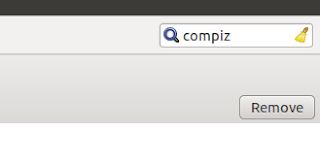
It is really easy to install just follow my steps carefully as here I am representing everything with images and videos belongs to that particular event. In order to get Ubuntu Compiz Fusion effects on desktop, you need to install some softwares through Ubuntu Software Center. So firstly, Go to – Applications - Ubuntu Software Center and in that wizard, enter on search bar – "compiz".
Now, you need to install four things –
1. Compiz
2. Compiz Fusion Icon
3. Advanced Desktop Effects Settings (ccsm)
4. Simple Compizconfig Settings Manager.
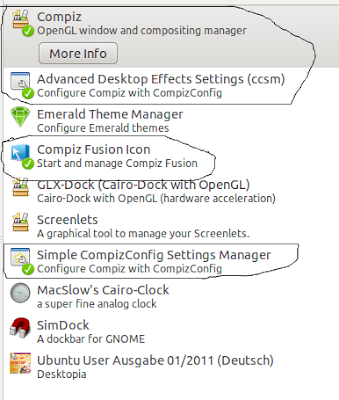
These above are the four things which help you to give uniqueness on dektop. After successfully downloaded and installed above softwares, you will get compiz fusion.
Now, you need to set configuration (arrangement) of comfiz fusion. It is based on you, how you would like to represent your desktop. You can set lots of things in compiz fusion. In order to set firstly go to – System -- Preferences and click on Simple Compizconfig Settings Manager. After this, a wizard will open through which you can customize your desktop settings. Through this wizard, you can create more workspace and give unique effects to your desktop. Just take a look at below video in order to learn how to use this wizard.
In order to give advanced effects on desktop or I can say that – more unique effects on desktop, you need to open Compiz Fusion Icon as go-to Application -- System Tools and click on “Compiz Fusion Icon”. After Opened, you would get logo of that icon. So, right click on that logo and click on “Settings Manager”. In this way, you will get compiz settings manager wizard as set more advanced attractive things for your desktop through this way. Take a look at below video to understand everything better –
You can also install Ubuntu Compiz Fusion through terminal. Open Terminal as go-to Application -- Accessories and click on Terminal. Enter in that terminal following line – “sudo apt-get install compiz” and press enter key from your keyboard and then, also enter password of your Ubuntu Administration Account in order to download and install it. After installed go-to Applications –- Ubuntu Software Center and enter in search bar “ccsm” and finally install – “Advanced Desktop Effects Settings (ccsm)”. Take a look at below video in order to learn how to do it -
In this way, you can use Ubuntu Compiz Fusion in order to give effective effects on desktop. I hope you like, feel free to make comment (feedback)…
Compiz was created following the production of Beryl. Actually, Compiz brings to life a variety of visual effects that make the Linux desktop easier to use, more powerful and intuitive, and more accessible for users with special needs. In other words, Ubuntu Compiz Fusion is a windows manager which uses accelerated 3D graphics to produce marvelous effects on desktop using OpenGL technology. It mostly produces the Gnome or KDE environment. Compiz has a collection of plug-ins available for a very customizable desktop.
Through Ubuntu Compiz Fusion, you can give a new look to your desktop. Look at below video to understand better –
How to install Compiz Fusion in Ubuntu?
It is really easy to install just follow my steps carefully as here I am representing everything with images and videos belongs to that particular event. In order to get Ubuntu Compiz Fusion effects on desktop, you need to install some softwares through Ubuntu Software Center. So firstly, Go to – Applications - Ubuntu Software Center and in that wizard, enter on search bar – "compiz".
1. Compiz
2. Compiz Fusion Icon
3. Advanced Desktop Effects Settings (ccsm)
4. Simple Compizconfig Settings Manager.
Now, you need to set configuration (arrangement) of comfiz fusion. It is based on you, how you would like to represent your desktop. You can set lots of things in compiz fusion. In order to set firstly go to – System -- Preferences and click on Simple Compizconfig Settings Manager. After this, a wizard will open through which you can customize your desktop settings. Through this wizard, you can create more workspace and give unique effects to your desktop. Just take a look at below video in order to learn how to use this wizard.
In order to give advanced effects on desktop or I can say that – more unique effects on desktop, you need to open Compiz Fusion Icon as go-to Application -- System Tools and click on “Compiz Fusion Icon”. After Opened, you would get logo of that icon. So, right click on that logo and click on “Settings Manager”. In this way, you will get compiz settings manager wizard as set more advanced attractive things for your desktop through this way. Take a look at below video to understand everything better –
In this way, you can use Ubuntu Compiz Fusion in order to give effective effects on desktop. I hope you like, feel free to make comment (feedback)…


 Posts
Posts



